How to add a certificate to your LinkedIn profile
A certificate in a drawer helps nobody. On LinkedIn it sits where recruiters and colleagues look, with a link anyone can click to check it. Here is how to add one properly, and how to share it without sounding like a press release.

There are two different things you can do with a certificate on LinkedIn, and most people only do one. You can add it to your profile, where it stays as part of your record. And you can share it in a post, which tells your network about it once. The first is what recruiters see when they look you up; the second is what your colleagues see this week. Both are worth doing.
1. Add it to your profile
LinkedIn keeps certificates in a profile section called Licenses & certifications. From your profile, choose Add profile section, then look for Add licenses & certifications (LinkedIn moves its menus around from time to time, but the section name stays the same). The form asks for:
- Name: the certificate’s title, exactly as it is printed, such as “Certificate of Completion: Project Management Essentials”
- Issuing organization: start typing and pick the organisation’s LinkedIn page if it has one, so its logo appears next to your certificate
- Issue date, and an expiration date if the certificate has one
- Credential ID: the certificate’s code
- Credential URL: a link where anyone can check it
2. Why the credential link matters
The credential URL turns a line on your profile into something anyone can check. On a Certale certificate it points to the certificate’s story page, which shows the issuer, the date and whether the certificate is still valid. A recruiter can confirm it in one click, without emailing anyone. The LinkedIn buttons on a story page appear once it is set to Shareable or Public, so if yours is Private, change that first.
3. Share it in a post
Adding a certificate to your profile doesn’t always tell your network about it. A short post does. The posts that land best read like a person talking, not an announcement:
- Say what it took. “Twelve weeks of Tuesday evenings” is more interesting than “I am pleased to announce”.
- Say what you’ll do with it. One sentence on how you’ll use what you learned.
- Thank people by name, and mention the issuing organisation so they can see and share it.
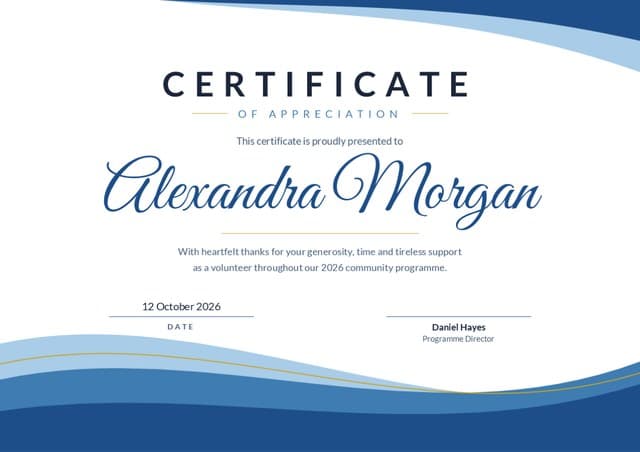
- Add the certificate, either as an image or with your story page link, so people can see the real thing.
From a Certale story page, Share on LinkedIn opens a new post with your certificate’s link attached, so all you need to add is your own words.
“The certificate shows what you achieved. The post is your chance to say why it mattered.”
4. Keep the section tidy
A long list of every webinar you ever attended dilutes the ones that matter. Keep the certificates that support the work you want next, put the most relevant first, and remove any that have expired, or renew them. If a certificate is revoked by its issuer, its story page will say so, so it’s worth keeping your profile in step.
If you issue certificates
Make it easy for people to show off what they earned with you. A clear certificate title, your organisation’s exact name (matching your LinkedIn page), a certificate code and a public link to check it are all LinkedIn needs. Every Certale certificate has them, with Add to LinkedIn profile and Share on LinkedIn buttons on its story page, on every plan. More on why that matters in why verified certificates matter to employers.
The Certale team
Certale, by PPT-Design LtdWe design Certale’s 1,000+ certificate templates and build the app that issues and verifies them. In the Journal we share what we have learned about recognising people well: the wording, the design and the practical side of getting certificates into the right hands.