Bulk certificates from Excel in 10 minutes
Turn a spreadsheet of names into a stack of finished, personalised certificates before your coffee goes cold. Most of the work is in the spreadsheet, so that is where we start.


Typing names into a certificate one at a time is fine for five people. For a class, a cohort or a conference, it is slow and it is where spelling mistakes creep in. Issuing from a spreadsheet fixes both: you check the list once, and every certificate comes out of it.
The ten minutes in the title assume your list is in decent shape. If it isn’t, the first step below is where the time goes, and it is time well spent.
1. Tidy the spreadsheet
One row per person, one column per piece of information, and the column headings in the first row. That is the whole rule. A few habits make it hold:
- Use clear headings such as Full name, Email, Course and Date. Separate First name and Last name columns are fine too.
- Keep it to one sheet, with no merged cells, no blank rows in the middle and no totals at the bottom.
- Remove stray spaces. Excel’s TRIM function strips the extra spaces that make “Amara Okafor” look odd in print.
- Find duplicates with Conditional Formatting, then Highlight Cells Rules, then Duplicate Values.
- Be careful with automatic capitalisation. Excel’s PROPER function turns “McDonald” into “Mcdonald” and “van der Berg” into “Van Der Berg”. Fix names by hand where it matters.
- Save as .xlsx, or as “CSV UTF-8” if you use CSV, so accents and Arabic names survive the trip.
2. Choose the design and the fields
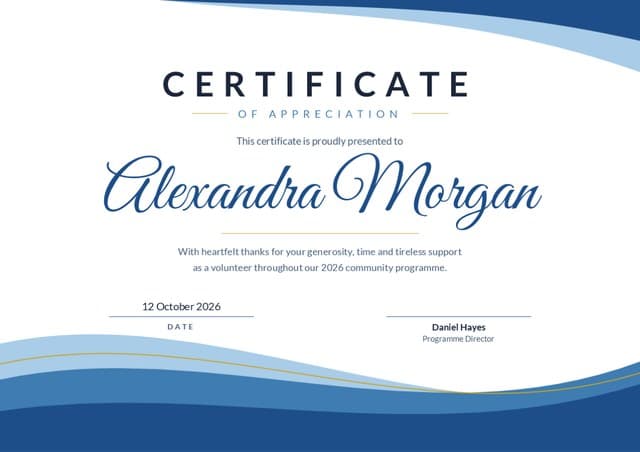
Pick a design and decide which text changes from person to person. Usually that is the name, and sometimes the course, award, date, hours or grade. Everything else, like the title, the signatures and your logo, stays the same on every certificate, so set it once on the design.
3. Upload and match the columns
In Certale, open the design, choose Issue in bulk with this design and upload your .xlsx or .csv file. Certale reads your headings and matches them to the fields on the design: “Full name”, “Student” and “Participant” all go to the name, “Email address” goes to email, and Arabic headings are recognised too. First-name and last-name columns are joined in order. Check the matches and fix any it couldn’t guess.
Dates can be typed in different ways in a spreadsheet. Pick how they should appear on the certificate, for example “12 October 2026”, and every row is printed the same way.
4. Check every row before anything is sent
Before you issue, Certale shows every certificate as it will look and flags the rows that need a second look:
- Empty names, usually a blank row or a heading in the wrong place
- Long names, which are shrunk to fit and are worth checking by eye
- Missing or invalid emails, if you are sending by email
- Duplicates, the same name and email twice, which is almost always a copy-and-paste slip
Fix the spreadsheet, or leave out the rows you don’t want, and look at the longest name on the real design before you go on.
5. Download or send
Choose how the certificates reach people. Download them all in one ZIP to print or share yourself (it includes a spreadsheet of everyone’s links), get just the links spreadsheet to send yourself, or, on the Business plan, have Certale email each person their certificate in your organisation’s name, with a subject and message you write. Each certificate gets its own QR code and story page either way.
- Tidy the listOne row per person, headings in the first row, no duplicates.
- Pick a designDecide which fields change from row to row.
- Match the columnsCheck what Certale matched and choose a date format.
- Review and issueFix flagged rows, then download, export links or email.
How many names you can issue
Single certificates are unlimited on every plan. Bulk issuing from Excel covers 25 names a month on Free, 300 on Pro and 1,000 on Business, and a single batch can hold up to 1,000 rows. Story pages, scanning and sharing are free on every plan. The details are on the pricing page.
The Certale team
Certale, by PPT-Design LtdWe design Certale’s 1,000+ certificate templates and build the app that issues and verifies them. In the Journal we share what we have learned about recognising people well: the wording, the design and the practical side of getting certificates into the right hands.